

English
Connection quality during a call
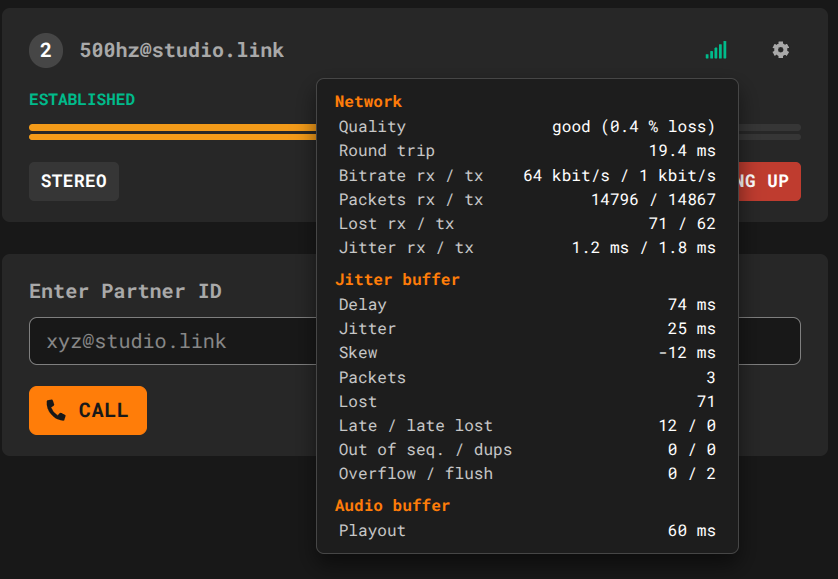
Every call has a small signal icon in the top right corner of its track. It shows you at a glance how good the connection to the other side is. Hover over the icon (or select it with the keyboard) to see more details.
What the colours mean
| Colour | Rating | Meaning |
|---|---|---|
| Green | Good | Everything is fine. |
| Yellow | Fair | The connection is a bit unstable. You may notice small dropouts or a slight delay. |
| Red | Bad | The connection has serious problems. Expect choppy audio, gaps or a noticeable delay. |
| Grey | No data | The call has not started yet, or no audio has been received so far. |
The rating is also shown as text in the first row of the details table.
The rating looks at three things:
- Lost audio – how much of the audio from the other side recently did not arrive.
- Round trip – how long it takes for audio to travel to the other side and back. A long delay makes conversation feel sluggish.
- Jitter – how unevenly the audio arrives. Very uneven delivery leads to gaps and dropouts.
If any one of these is poor, the icon shows the worse rating.
Why doesn't the icon turn green right away?
When the connection gets worse, the icon changes immediately. When it gets better again, the icon waits a few seconds to make sure the improvement is stable. This keeps it from flickering back and forth.
The details table
Where a cell shows two values, like 12 / 3, the first value is about the audio you receive, the second about the audio you send.
Network
| Row | What it tells you |
|---|---|
| Round trip | Time for audio to reach the other side and come back. Shows - at the start of a call until it has been measured. Lower is better. |
| Bitrate | How much audio data is currently being received / sent. |
| Packets | How many audio packets have been received / sent since the call started. |
| Lost | How many audio packets went missing since the call started. Receive: audio from the other side that never reached you. Send: your audio that never reached the other side. |
| Jitter | How unevenly the audio arrives. Lower is better. |
Jitter buffer
Audio travels over the network in many small packets, and they don't always arrive evenly or in the right order. The jitter buffer holds incoming audio for a short moment, puts it back in order and then plays it smoothly. The more uneven the connection, the longer it waits – which makes the audio more stable but adds a little delay.
The counters below start again from zero whenever the buffer is reset (see Flush).
| Row | What it tells you |
|---|---|
| Delay | How long audio is currently held before it is played. Adjusts automatically to the connection. |
| Jitter | How uneven the buffer currently thinks the connection is. Often lower than the jitter in the Network section, because small variations are ignored. |
| Skew | Small differences between the clocks of your audio device and the other side's. Usually harmless; if it gets large, it is corrected automatically, which can cause a short click. |
| Packets | How much audio is waiting in the buffer right now. |
| Lost | Audio that was missing when it was due to be played. These gaps are smoothed over automatically but may be audible. Includes Late lost. |
| Late | Audio that arrived a little late but could still be played. If this keeps rising, the buffer increases its delay. |
| Late lost | Audio that arrived so late it had to be thrown away. The network delivered it, but too late to use. Already counted in Lost. |
| Out of seq. | Audio that arrived in the wrong order and was put back in order. Harmless. |
| Dups | Audio that arrived twice; the copy was ignored. Harmless. |
| Overflow | The buffer was full and had to drop old audio – usually after the connection stalled and then delivered a burst all at once. |
| Flush | How often the buffer was completely reset, for example when the other side restarted their audio. |
Audio buffer
| Row | What it tells you |
|---|---|
| Playout | A small amount of audio kept ready just before it goes to your speakers or headphones. Together with the jitter buffer Delay, this is how much delay is added on your side. |
What to do when the quality is poor
| What you see | Likely cause | What helps |
|---|---|---|
| Lost (receive) rising, Late lost stays at 0 | Audio from the other side is getting lost on the way – often bad Wi-Fi or a weak internet connection on their side. | Ask the other side to check their connection. |
| Lost (send) rising | Your audio isn't reaching the other side – often your own upload. | Check your internet connection, pause uploads or video streams running in the background. |
| Late / Late lost rising, high jitter | Audio arrives, but too unevenly. | Use a network cable instead of Wi-Fi, or move closer to the router. |
| Skew constantly high | The clocks of the two audio devices drift apart. | Occasional clicks are possible; usually nothing to worry about. |
| Overflow or Flush increasing | The connection briefly stalled, or the other side restarted their audio. | If it keeps happening, check the network. |
